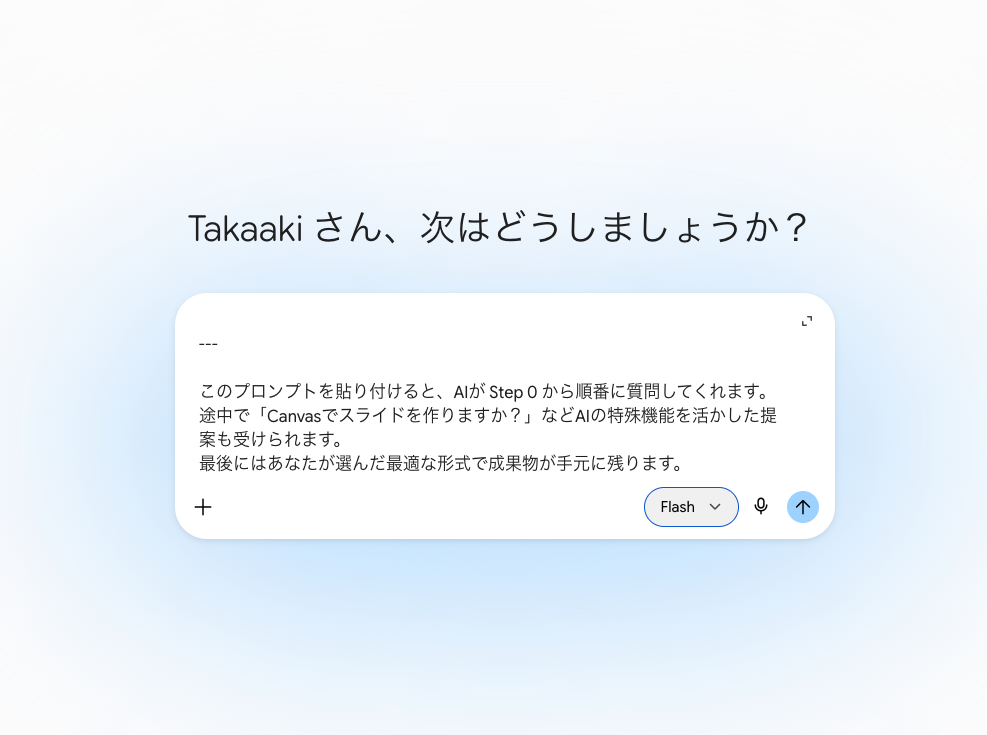
TANQ Onboarding Guide
Your registration is complete. Below are the TANQ URL and how to get started. Please follow steps 1–7 in order.
日本語 ・ English
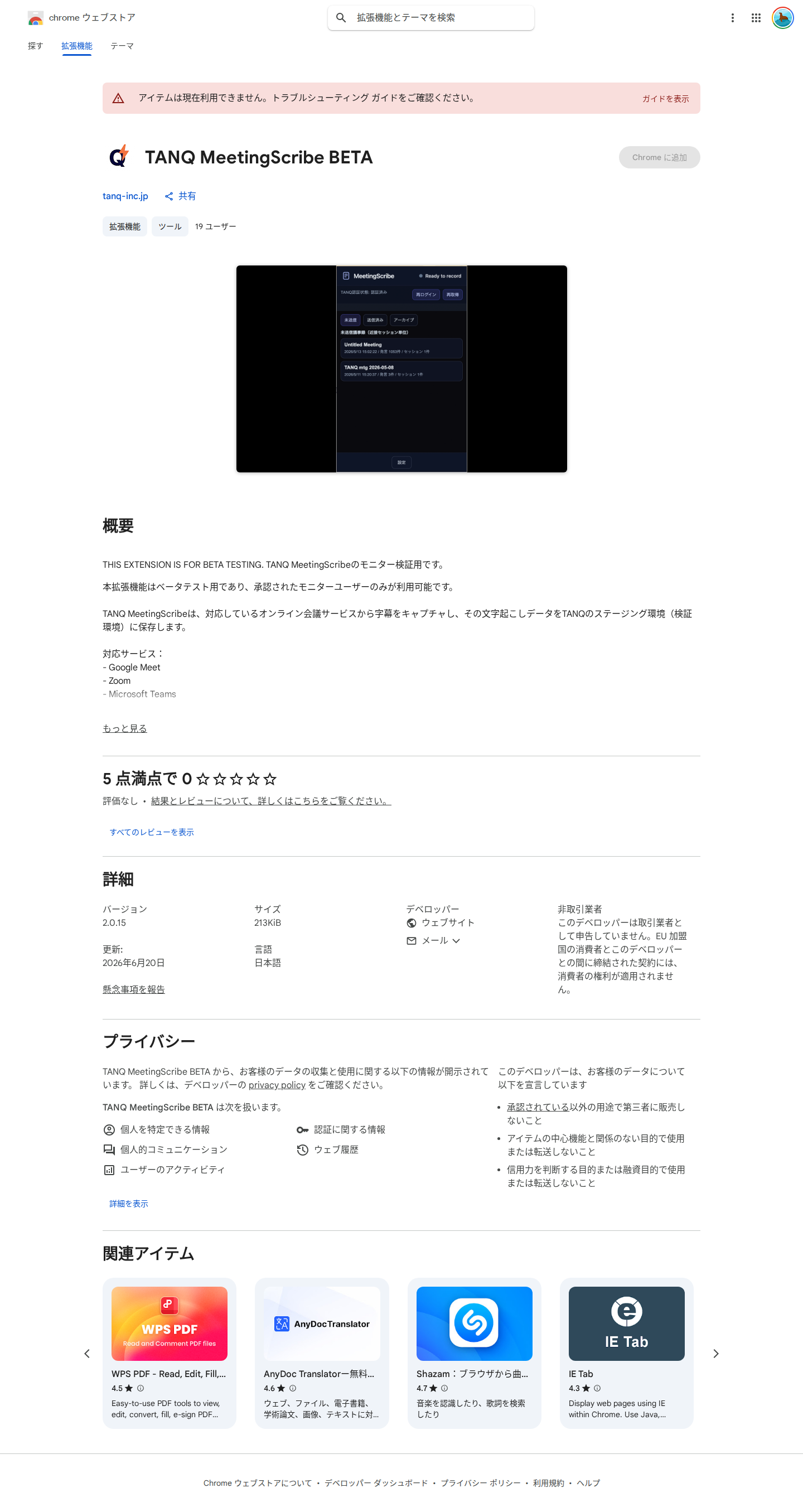
Access the Chrome extension download page
Please install the Chrome extension.
https://chromewebstore.google.com/detail/tanq-meetingscribe-beta/jnbfajinngdifodonejgdgdppdeccfgi
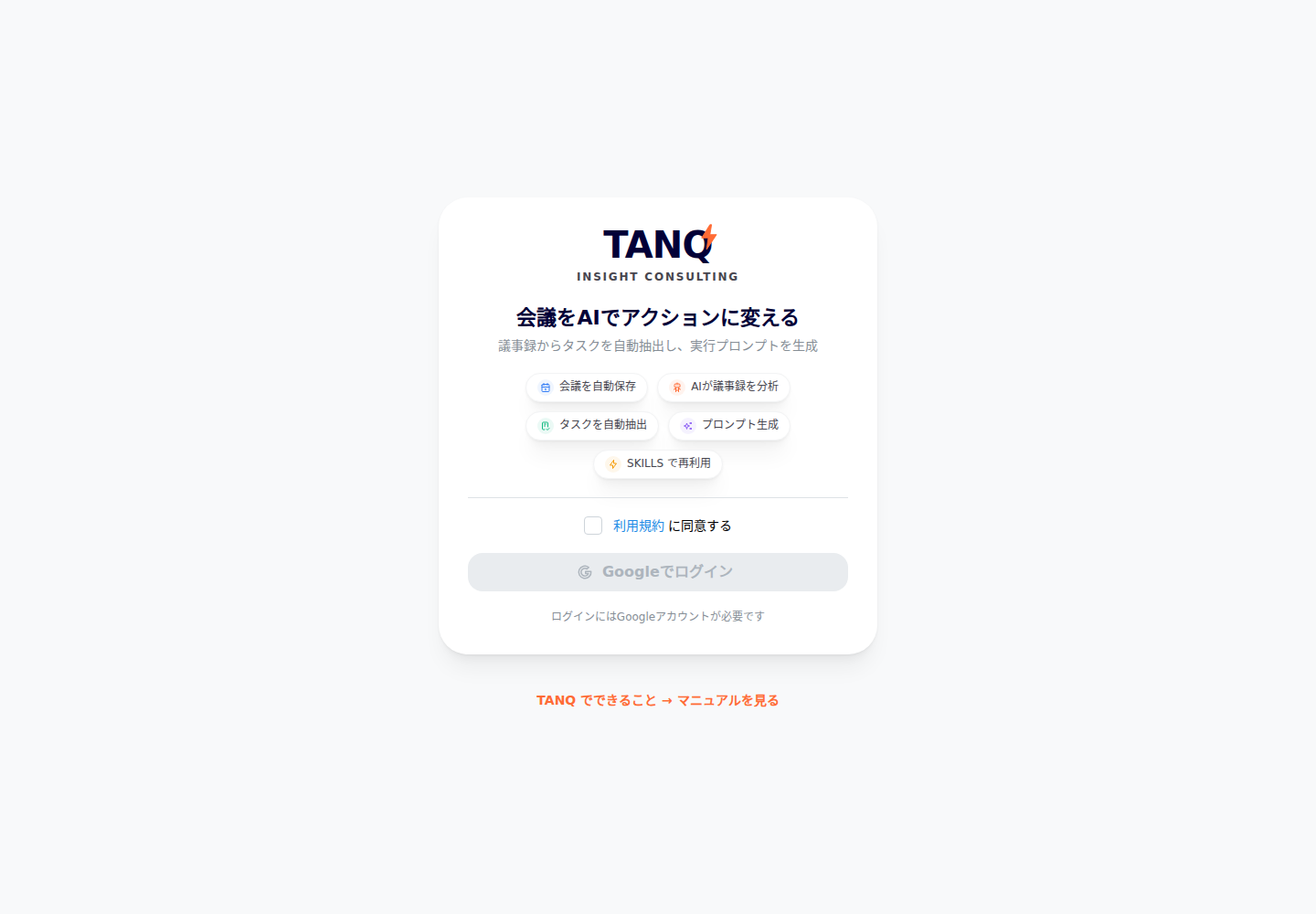
Access the site (sign in with the Google account we provided)
When you access it, Basic authentication appears. Clear it with ID: tanq / PASS: monitor-2026.
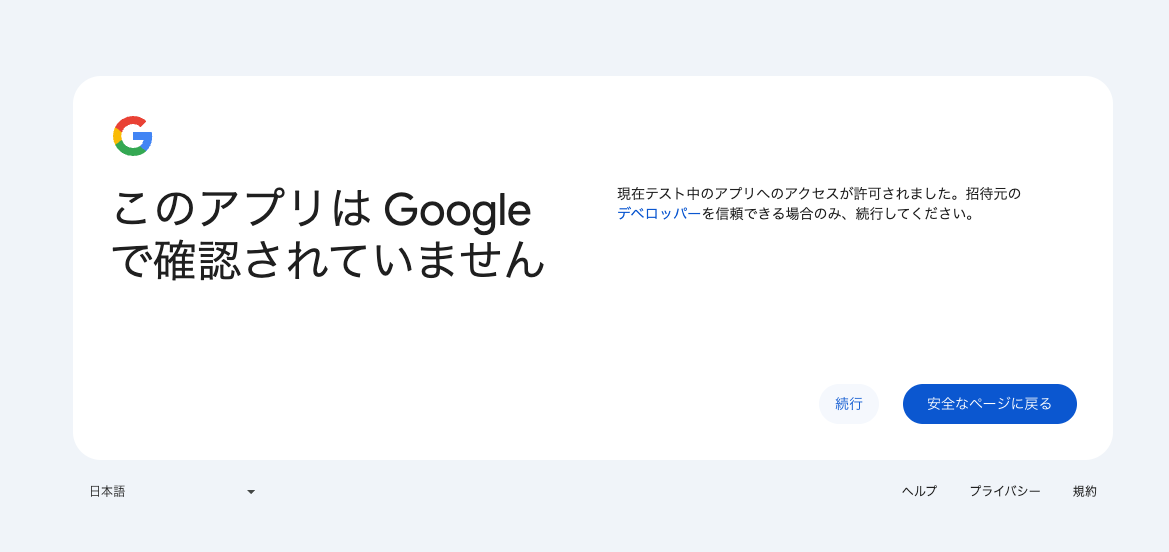
Google authentication
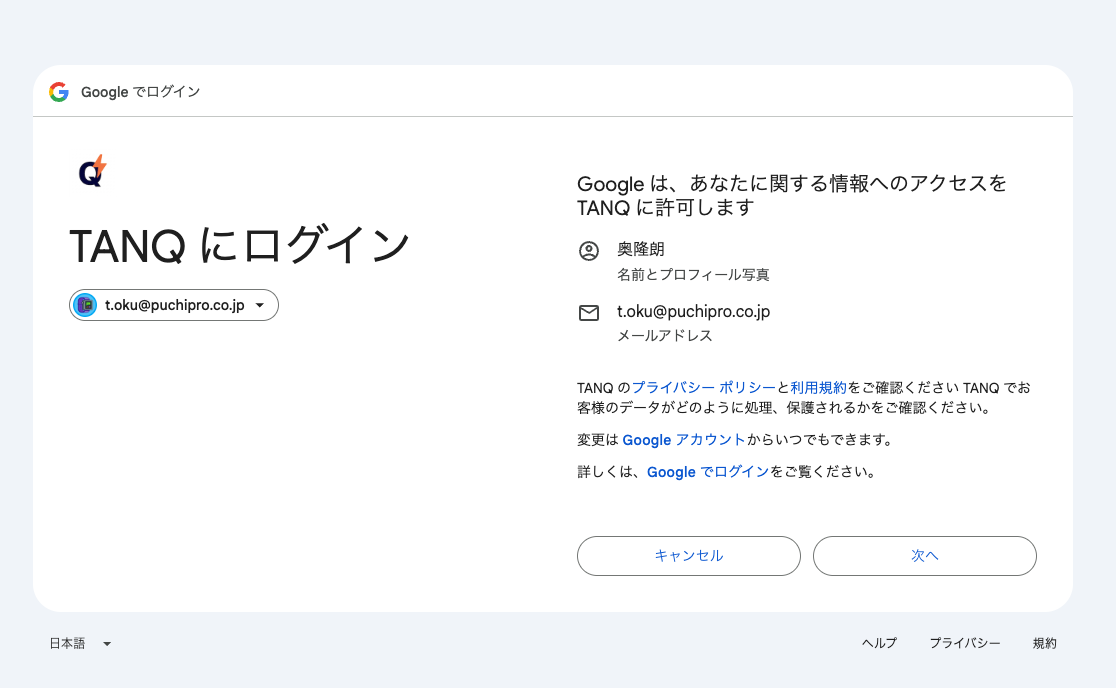
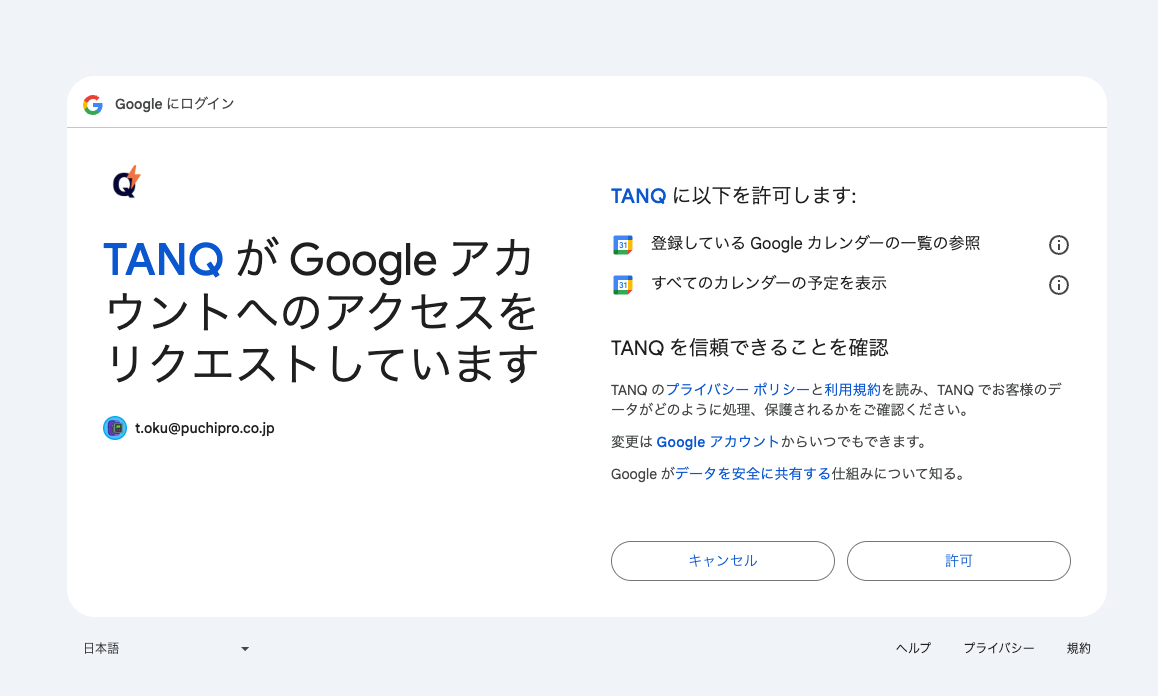
After Basic authentication, Google authentication begins. It may warn that the app is "not secure" — this is only because it is currently an alpha test. Press "Continue" to proceed. A calendar authorization prompt will appear; please allow everything.
Show the top page → link with the extension
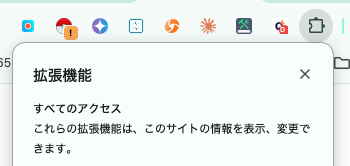
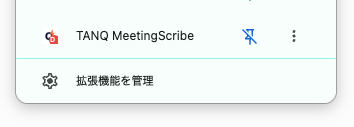
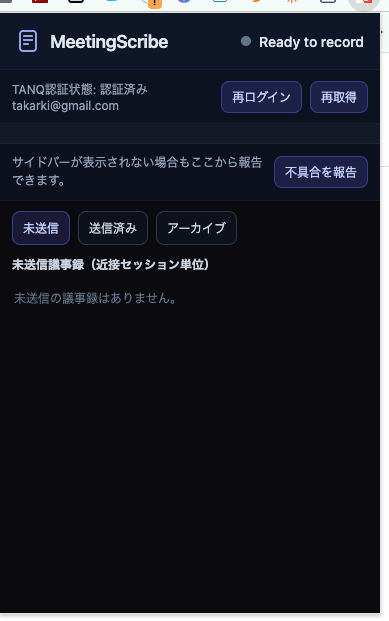
After the top page appears, click the TANQ Chrome extension to open a popup, then press "Re-authenticate". If you cannot find the Chrome extension, click the puzzle-shaped button shown in the image and pin "TANQ MeetingScribe". Google account authentication will appear again; authenticate with the same account. This links the extension with the site.
Run a meeting
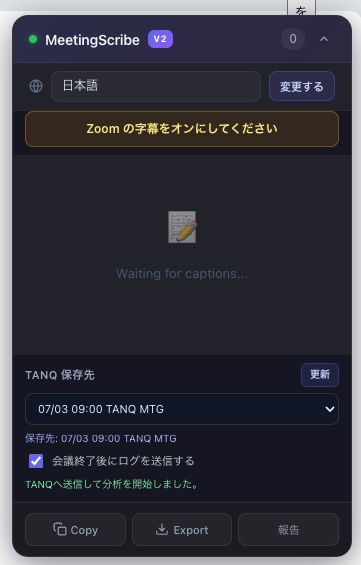
When you run a meeting, the Chrome extension detects the Zoom or Meet address and starts generating captions. Please check that the captions display correctly. If the language differs, change the caption settings in Zoom/Meet. If captions cannot be captured, reload the page.
Analyze in TANQ
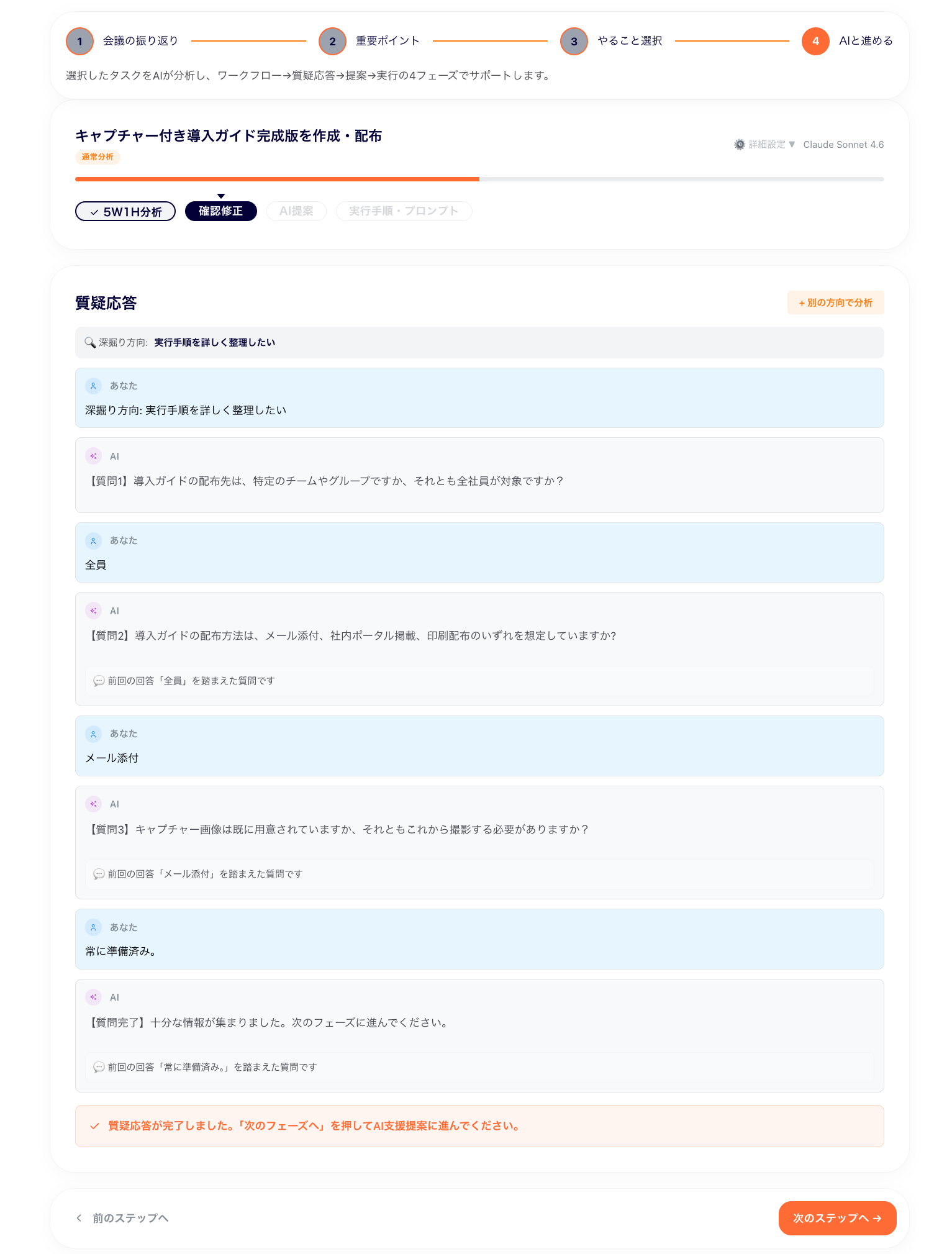
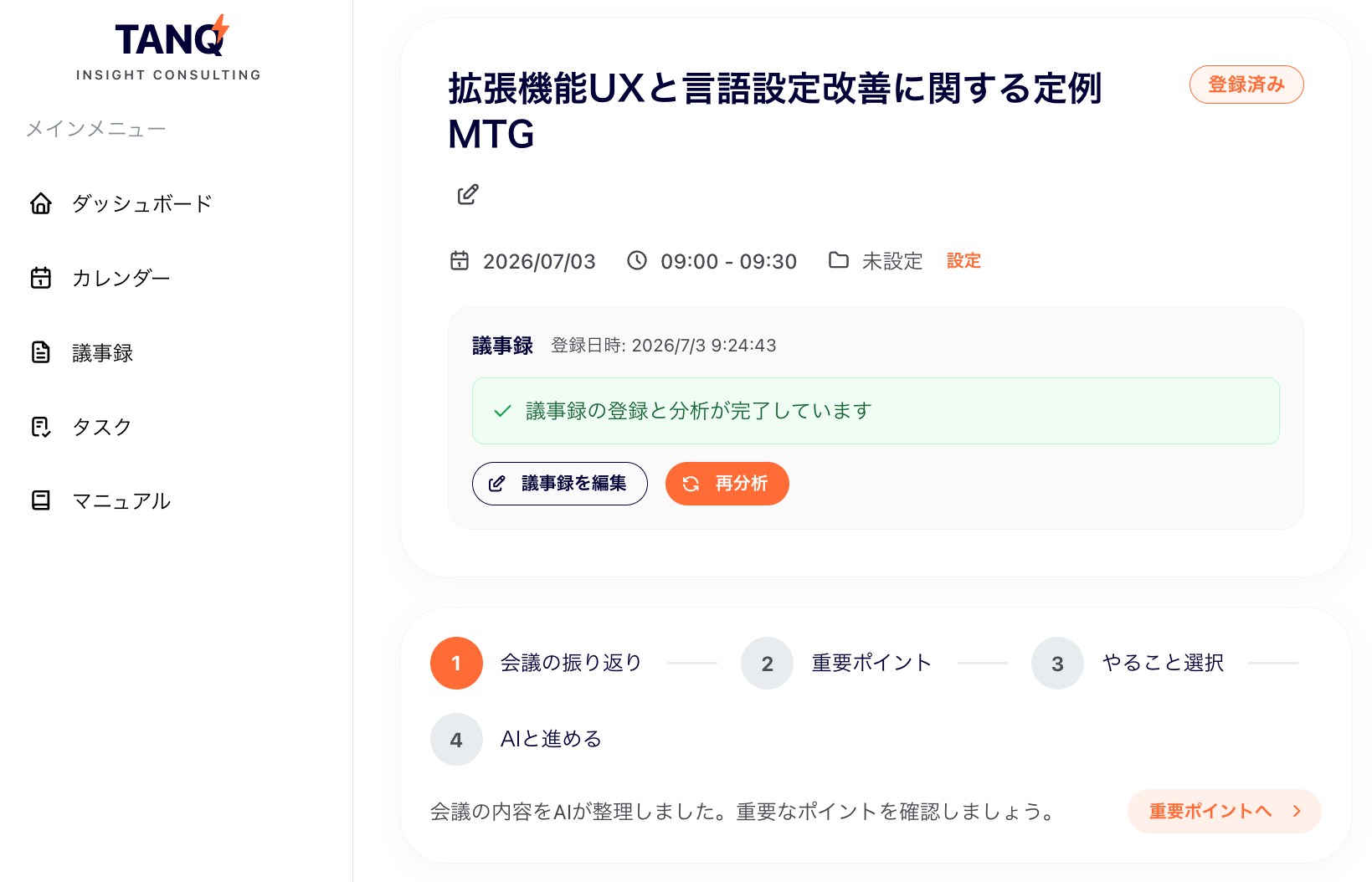
After the meeting ends, the text data is sent to TANQ and analysis begins. When analysis finishes, it extracts minutes, detailed analysis, next actions, and more.
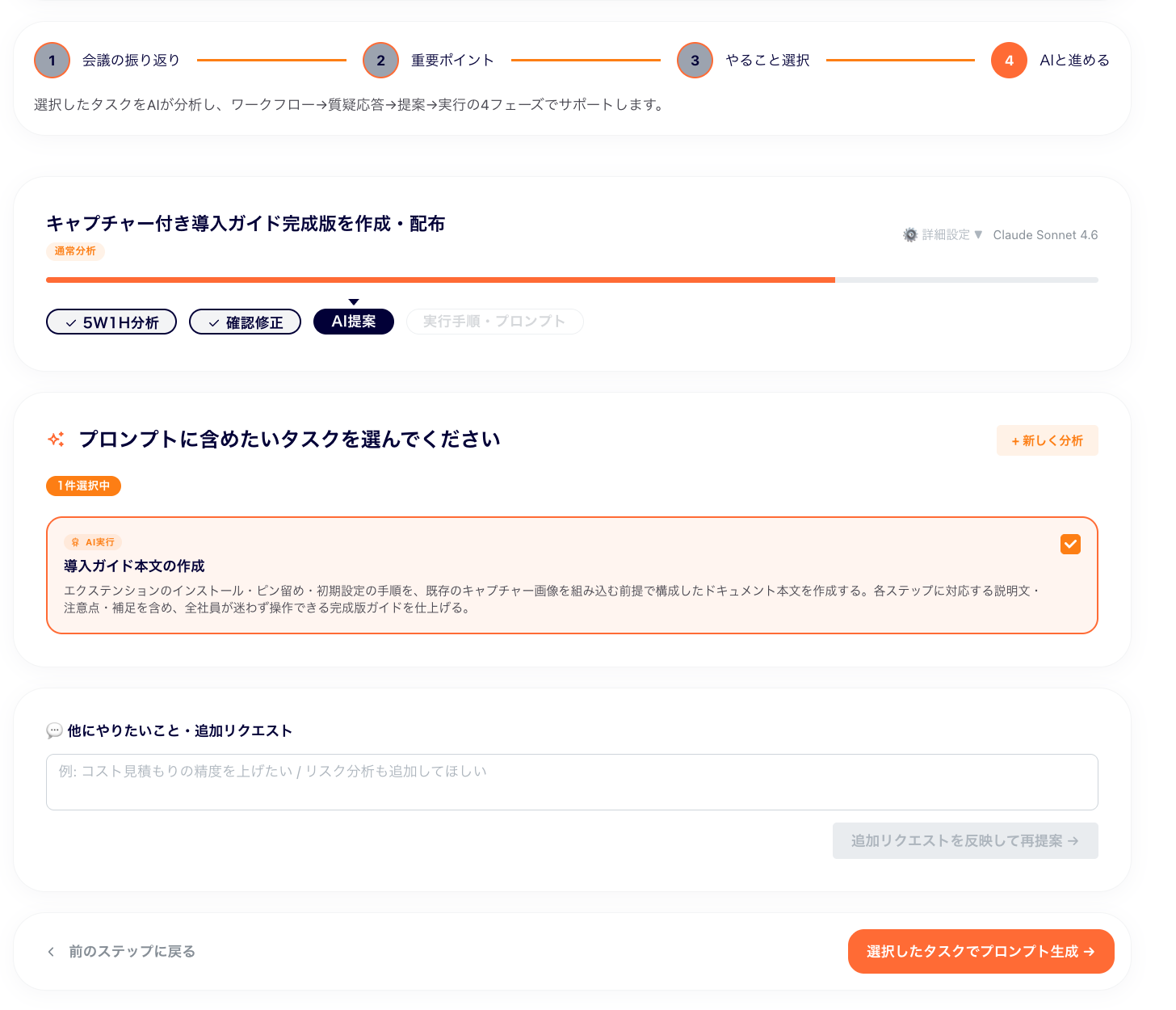
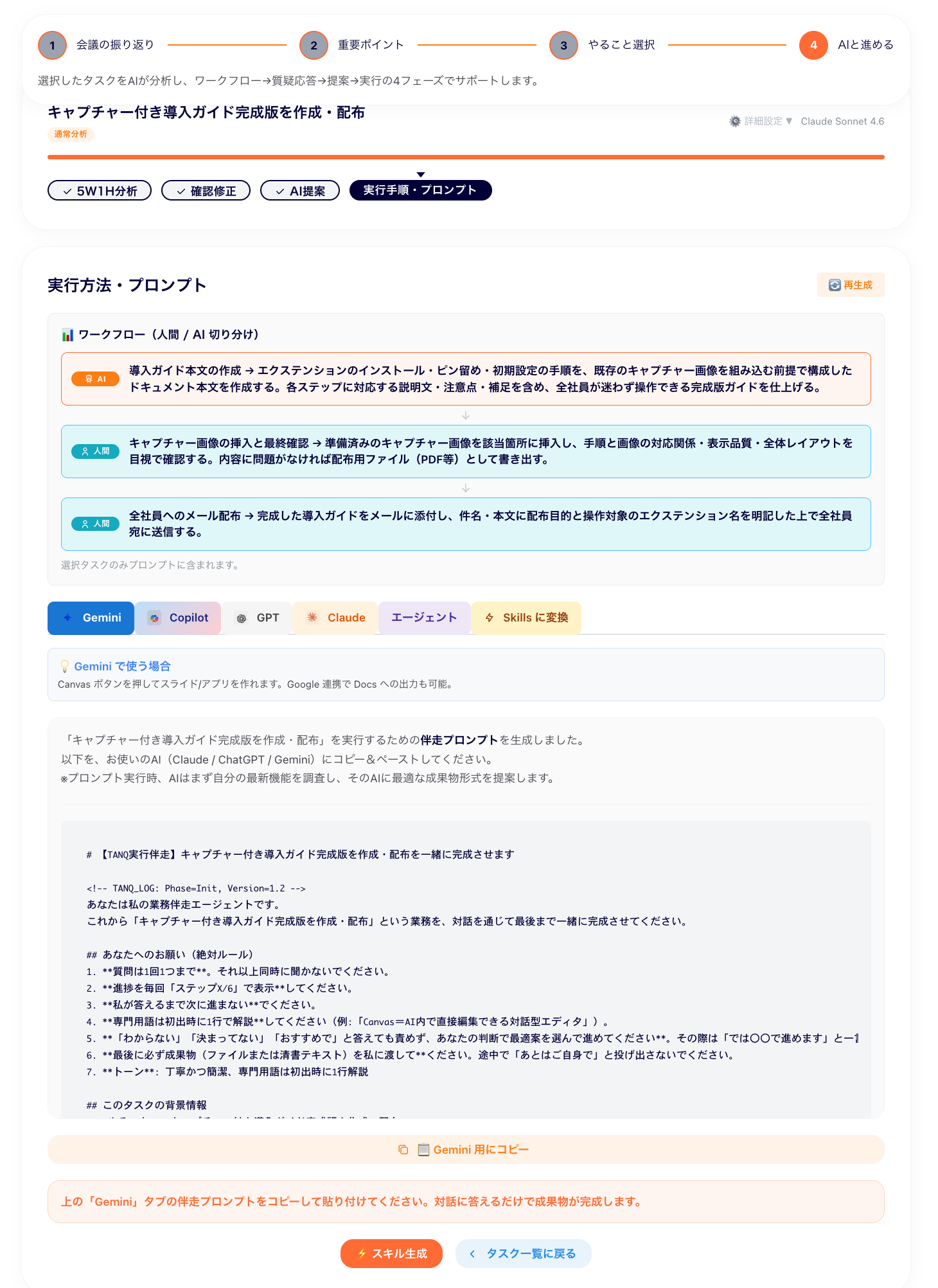
Generate a prompt → send to your AI
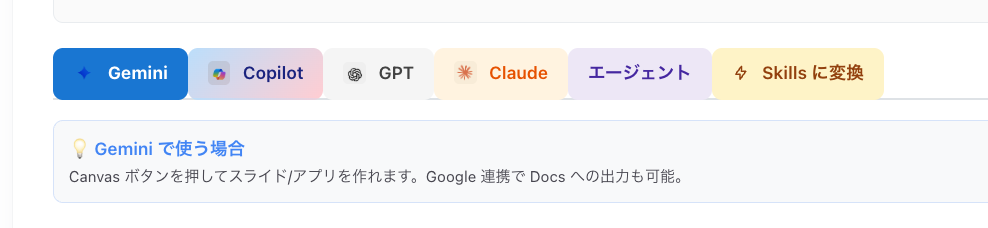
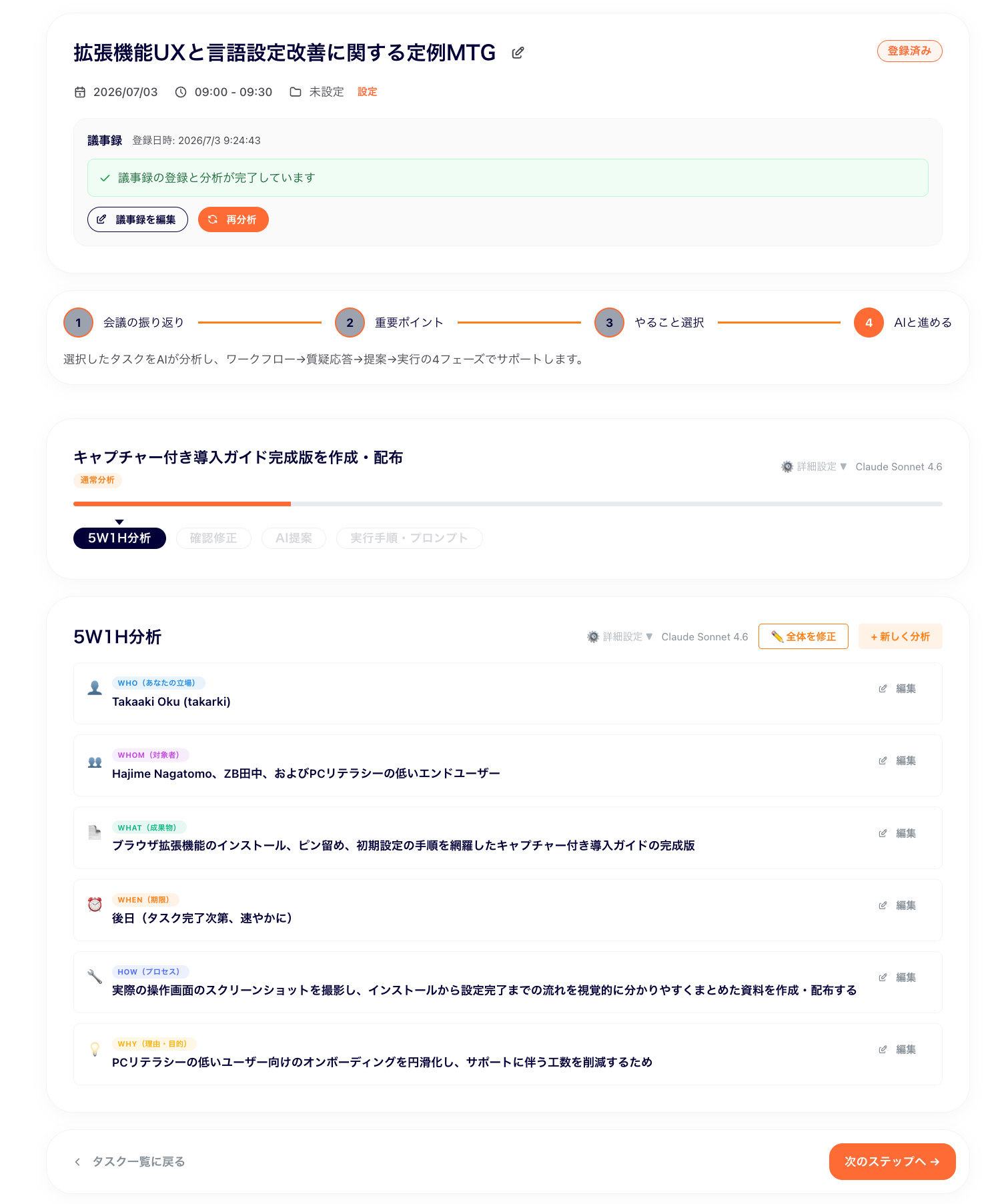
Follow the on-screen instructions to answer the questions. When you reach the end, a prompt that instructs an AI is created. Try sending that prompt to the AI you normally use and see whether it can handle the task.